
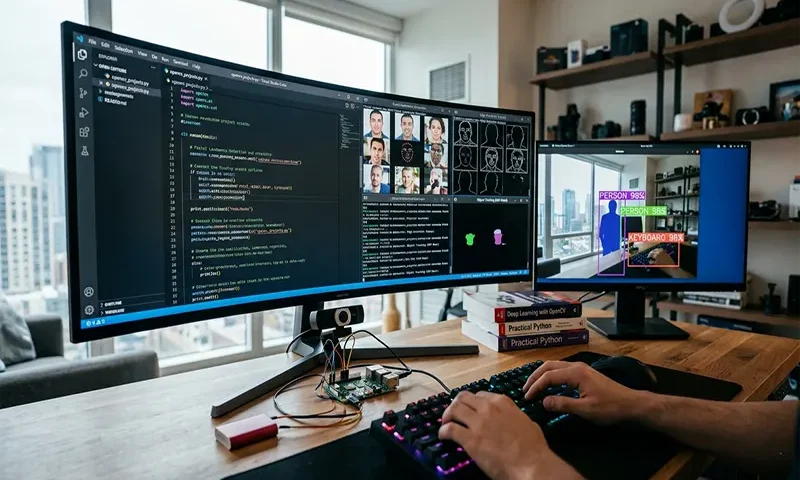
Computer vision is one of the most dynamic subfields of computer science, driving innovations from autonomous vehicles to augmented reality. At the center of this revolution is OpenCV (Open Source Computer Vision Library), an open-source framework optimized for real-time computational throughput.
Many beginners believe that computer vision requires training massive, resource-heavy deep learning models. However, classical image processing—manipulating pixel matrices, color spaces, and geometric transformations—is computationally efficient and highly effective. These three interactive projects will take you from working with static images to processing real-time webcam data streams using Python and OpenCV.
Project 1: Automated Document Scanner & Perspective Correction
The Concept
When you photograph a document or a receipt at an angle, the perspective becomes skewed. This project recreates the core engine of mobile document-scanning apps. The program takes a skewed image, isolates the edges of the document, finds its four corners, and applies a perspective warp to yield a clean, top-down, birds-eye view.
Step-by-Step Execution
- Grayscale and Blur: Convert the input image to grayscale and apply a Gaussian blur to eliminate high-frequency background noise.
- Edge Detection: Run the Canny edge detection algorithm to isolate sharp intensity transitions.
- Contour Extraction: Find structural boundaries and isolate the largest four-sided polygon, which represents the document.
- Warp Perspective: Map the coordinates of those four points to a new flat rectangular matrix using a perspective transform.
Code Blueprint
Python
import cv2
import numpy as np
# 1. Load image and preprocess
image = cv2.imread(“document.jpg”)
gray = cv2.cvtColor(image, cv2.COLOR_BGR2GRAY)
blurred = cv2.GaussianBlur(gray, (5, 5), 0)
# 2. Canny Edge Detection
edged = cv2.Canny(blurred, 75, 200)
# 3. Find contours and sort by size
contours, _ = cv2.findContours(edged.copy(), cv2.RETR_LIST, cv2.CHAIN_APPROX_SIMPLE)
contours = sorted(contours, key=cv2.contourArea, reverse=True)[:5]
for c in contours:
peri = cv2.arcLength(c, True)
approx = cv2.approxPolyDP(c, 0.02 * peri, True)
# If the contour has 4 points, we found our document
if len(approx) == 4:
screen_cnt = approx
break
# 4. Apply perspective warp (assuming pts1 maps to standard document dimensions pts2)
pts1 = np.float32([screen_cnt[0], screen_cnt[1], screen_cnt[2], screen_cnt[3]])
pts2 = np.float32([[0, 0], [500, 0], [500, 600], [0, 600]])
matrix = cv2.getPerspectiveTransform(pts1, pts2)
warped = cv2.warpPerspective(image, matrix, (500, 600))
cv2.imshow(“Scanned Document”, warped)
cv2.waitKey(0)
Why It Is Valuable
This project teaches you how image coordinate systems work, how to isolate structural geometry using cv2.findContours, and how to perform spatial matrix transformations via cv2.warpPerspective.
Project 2: Real-Time Invisible Cloak Using Color Segmentation
The Concept
Inspired by Hollywood special effects, this project uses a live webcam feed to make a specific color (like a solid red or blue towel) act as an “invisibility cloak.” The script captures a reference image of the empty background, detects the designated cloak color in real time, masks it out, and fills the empty space with pixels from the saved background image.
Step-by-Step Execution
- Background Registration: Capture the static environment frame before stepping into the scene.
- Color Space Conversion: Convert live frames from standard BGR color space to HSV (Hue, Saturation, Value), which isolates color profiles from lighting fluctuations.
- Threshold Masking: Create a binary mask where the targeted cloak color displays as white pixels and everything else displays as black pixels.
- Pixel-Wise Arithmetic: Use bitwise operators to subtract the cloak region from the live frame and patch it with the corresponding background pixels.
Code Blueprint
Python
import cv2
import numpy as np
import time
cap = cv2.VideoCapture(0)
time.sleep(2) # Allow camera to warm up
# 1. Capture the background
_, background = cap.read()
while cap.isOpened():
ret, frame = cap.read()
if not ret: break
# 2. Convert to HSV color space
hsv = cv2.cvtColor(frame, cv2.COLOR_BGR2HSV)
# 3. Define target color range (Example: Red cloth range)
lower_red = np.array([0, 120, 70])
upper_red = np.array([10, 255, 255])
mask = cv2.inRange(hsv, lower_red, upper_red)
# Refine the mask using morphology transformations
mask = cv2.morphologyEx(mask, cv2.MORPH_OPEN, np.ones((3, 3), np.uint8))
# 4. Segment and combine background/foreground
mask_inverse = cv2.bitwise_not(mask)
foreground_segmented = cv2.bitwise_and(frame, frame, mask=mask_inverse)
background_segmented = cv2.bitwise_and(background, background, mask=mask)
final_output = cv2.addWeighted(foreground_segmented, 1, background_segmented, 1, 0)
cv2.imshow(“Invisibility Cloak”, final_output)
if cv2.waitKey(1) & 0xFF == ord(‘q’): break
cap.release()
cv2.destroyAllWindows()
Why It Is Valuable
This project teaches you color segmentation. Standard BGR images change drastically under different lighting conditions. Working in HSV with cv2.inRange shows you how to segment real-world objects based on color properties.
Project 3: Motion-Triggered Security Alarm
The Concept
Instead of passing full video files into deep learning object detection networks, security cameras evaluate frame differentials to detect activity. This project monitors a live video stream, compares successive frames to detect physical motion, draws visual bounding boxes around moving targets, and logs changes to simulate an alarm system.
Step-by-Step Execution
- Frame Buffering: Store consecutive video frames as grayscale arrays.
- Absolute Difference calculation: Calculate the absolute pixel difference between the current frame and the preceding reference frame.
- Thresholding: Convert the difference map into a binary image to highlight moving entities.
- Bounding Metrics: Group the white pixels into bounding regions using cv2.boundingRect and overlay rectangles on the live color feed.
Code Blueprint
Python
import cv2
cap = cv2.VideoCapture(0)
ret, frame1 = cap.read()
ret, frame2 = cap.read()
while cap.isOpened():
# 1. Calculate absolute delta between successive frames
diff = cv2.absdiff(frame1, frame2)
gray = cv2.cvtColor(diff, cv2.COLOR_BGR2GRAY)
blur = cv2.GaussianBlur(gray, (5, 5), 0)
# 2. Binary thresholding to isolate movement
_, thresh = cv2.threshold(blur, 20, 255, cv2.THRESH_BINARY)
dilated = cv2.dilate(thresh, None, iterations=3)
# 3. Extract contours from movement mask
contours, _ = cv2.findContours(dilated, cv2.RETR_TREE, cv2.CHAIN_APPROX_SIMPLE)
# 4. Filter and draw tracking boundaries
for contour in contours:
if cv2.contourArea(contour) < 900: # Ignore small motion noise
continue
x, y, w, h = cv2.boundingRect(contour)
cv2.rectangle(frame1, (x, y), (x + w, y + h), (0, 255, 0), 2)
cv2.putText(frame1, “STATUS: MOTION DETECTED”, (10, 20),
cv2.FONT_HERSHEY_SIMPLEX, 0.7, (0, 0, 255), 2)
cv2.imshow(“Security Feed”, frame1)
frame1 = frame2
ret, frame2 = cap.read()
if cv2.waitKey(1) & 0xFF == ord(‘q’): break
cap.release()
cv2.destroyAllWindows()
Why It Is Valuable
This project introduces temporal video analysis. You will learn to use cv2.absdiff to monitor movement trends across time, providing a foundation for video tracking and flow-based analytics.
Structural Blueprint for Any OpenCV Project
Almost every real-time computer vision script follows the same structural pattern. Use the boilerplate template below to kickstart your own custom webcam processing ideas:
Python
import cv2
# Initialize video stream capture hardware interface
cap = cv2.VideoCapture(0)
while True:
ret, frame = cap.read()
if not ret:
print(“Error: Could not read frame from camera source.”)
break
# — YOUR PROCESSING CODE GOES HERE —
# processed_frame = cv2.someFunction(frame)
# Display the visual results container
cv2.imshow(“Application Output Window”, frame)
# Poll keyboard execution matrix; exit loop when ‘q’ key is pressed
if cv2.waitKey(1) & 0xFF == ord(‘q’):
break
# Clear stream allocations and close active windows
cap.release()
cv2.destroyAllWindows()
Troubleshooting Note: If your webcam fails to initialize, change the parameter inside cv2.VideoCapture(0) from 0 to 1 or -1. This tells OpenCV to switch to alternate webcams or external USB cameras connected to your computer hardware.
By building these three foundational projects, you gain direct experience with the essential tools of computer vision: spatial perspective modifications, color thresholding arrays, and motion matrix extraction. These classical techniques are fast, require no complex hardware training loops, and provide the programmatic logic you need to explore advanced deep learning and neural network architectures.

