
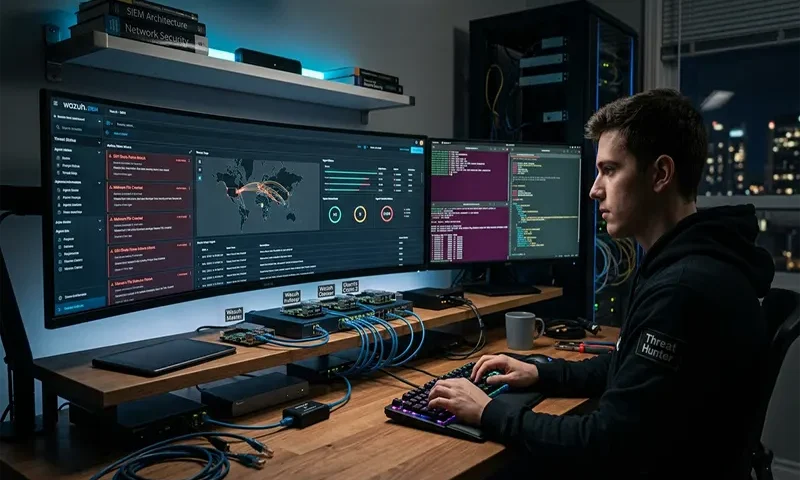
Building a cybersecurity home lab is the single most effective way to break into the security field and gain hands-on experience. It allows you to step away from theoretical textbooks and directly experience live telemetry, log aggregation, and adversarial tactics.
At the center of any modern Security Operations Center (SOC) is a Security Information and Event Management (SIEM) system. For a home lab, Wazuh is an exceptional choice. Wazuh is a powerful, open-source enterprise SIEM and Extended Detection and Response (XDR) platform that combines log management, vulnerability assessment, configuration assessment, and file integrity monitoring (FIM) into a single, intuitive interface.
Architectural Blueprint & Prerequisites
Before deploying software, you need to establish a stable hypervisor platform to host your virtual machines (VMs). Excellent options include Proxmox VE, VMware Workstation, or Type-2 hypervisors like VirtualBox.
┌────────────────────────────────────────────────────────┐
│ Hypervisor Network │
│ │
│ ┌─────────────────┐ ┌──────────────────┐ │
│ │ Target VM │ │ Target VM │ │
│ │ (Windows 11) │ │ (Ubuntu Server) │ │
│ │ Wazuh Agent │ │ Wazuh Agent │ │
│ └────────┬────────┘ └────────┬─────────┘ │
│ │ │ │
│ │ (Telemetry Port 1514/TCP) │ │
│ └───────────────┬───────────────┘ │
│ ▼ │
│ ┌─────────────────────────┐ │
│ │ Wazuh Manager │ │
│ │ (Ubuntu Server) │ │
│ └─────────────────────────┘ │
└────────────────────────────────────────────────────────┘
To prevent performance bottlenecks during heavy indexing periods, allocate your hardware resources according to the blueprint below:
- Wazuh Central Manager Node (Ubuntu Server 22.04 LTS): 2 vCPUs, 4GB to 6GB of RAM, and 50GB of SSD storage space.
- Target Endpoint 1 (Windows 11 Client): 2 vCPUs, 4GB of RAM, and 40GB of storage.
- Target Endpoint 2 (Ubuntu Server Client): 1 vCPU, 2GB of RAM, and 20GB of storage.
Deploying the Central Wazuh Manager Engine
The most efficient way to deploy the Wazuh manager, indexer, and dashboard on a single node is by using the automated quickstart script provided by Wazuh.
- Install a clean instance of Ubuntu Server 22.04 LTS, log in via SSH, and ensure your package lists are fully up to date:
Bash
sudo apt update && sudo apt upgrade -y
- Download and run the Wazuh installation script. This script automatically handles generating self-signed SSL/TLS certificates, pulling container components, and setting up backend system services:
Bash
curl -sO https://packages.wazuh.com/4.x/wazuh-install.sh && sudo bash wazuh-install.sh -a
- Once the installation process finishes, the terminal will display your unique administrator credentials. Save these securely.
- Open a web browser on your host machine and navigate to the IP address of your manager node over HTTPS (e.g., [https://192.168.1.150](https://192.168.1.150)). Log in using your saved admin credentials to explore the Wazuh dashboard interface.
Agent Deployment & Ingestion Engineering
With the central SIEM running, you must install lightweight Wazuh agents on your target VMs to stream telemetry back to the manager node via port 1514/TCP.
1. Windows Endpoint Ingestion Setup
To get comprehensive visibility into Windows operating systems, you should pair the default Wazuh agent with Microsoft Sysmon (System Monitor), which provides deep visibility into process creations, network connections, and file system modifications.
- Download and install Sysmon on your Windows VM using SwiftOnSecurity’s optimized configuration layout:
PowerShell
Invoke-WebRequest -Uri “https://raw.githubusercontent.com/SwiftOnSecurity/sysmon-config/master/sysmonconfig-export.xml” -OutFile “sysmonconfig.xml”
.\Sysmon64.exe -i sysmonconfig.xml
- Open your Wazuh Dashboard, go to Deploy new agent, select Windows, enter your Manager IP address, and copy the generated PowerShell command to run it inside your Windows VM.
- Open the agent configuration file located at C:\Program Files (x86)\ossec-agent\ossec.conf using an elevated text editor. Scroll down to the <localfile> blocks and append the XML configuration snippet below to tell the agent to forward your Sysmon event logs:
XML
<localfile>
<location>Microsoft-Windows-Sysmon/Operational</location>
<log_format>eventchannel</log_format>
</localfile>
- Save the file and restart the agent service using the Windows Services manager console (services.msc).
2. Linux Endpoint Ingestion Setup
Deploying the agent onto an Ubuntu client is straightforward and can be completed entirely through the command line:
- Select Linux (Ubuntu) inside the Deploy new agent wizard on your dashboard, input your Manager IP, and run the provided registration commands on your Linux target client VM:
Bash
wget -qO – https://packages.wazuh.com/key/GPG-KEY-WAZUH | gpg –dearmor -o /usr/share/keyrings/wazuh.gpg
echo “deb [signed-by=/usr/share/keyrings/wazuh.gpg] https://packages.wazuh.com/4.x/apt/ stable main” | tee /etc/apt/sources.list.get/wazuh.list
sudo apt-get update && WAZUH_MANAGER=’192.168.1.150′ sudo apt-get install wazuh-agent
- Verify your default authentication logs are being explicitly watched inside /var/ossec/etc/ossec.conf:
XML
<localfile>
<location>/var/log/auth.log</location>
<log_format>syslog</log_format>
</localfile>
- Start the agent service on the endpoint:
Bash
sudo systemctl daemon-reload && sudo systemctl enable wazuh-agent && sudo systemctl start wazuh-agent
Return to your central Wazuh web UI dashboard dashboard. Both target endpoints should now show up with an Active connection status.
Threat Emulation and Detection Testing
An empty SIEM dashboard doesn’t provide much learning value. To verify that your alert configurations are working properly, you need to simulate adversary behaviors on your targets and analyze the resulting security logs.
Adversarial Emulation 1: SSH Brute-Force Attack (Linux Node)
From your main host computer or an alternate VM, simulate an SSH brute-force password guessing attack directed at your Linux target client’s IP address using an automation tool like Hydra, or simply generate rapid incorrect authentication attempts manually:
Bash
hydra -l root -P unsecure_passwords.txt ssh://192.168.1.160 -t 4
Navigate back to the Security Events panel inside your Wazuh Dashboard. You will see rule triggers indicating escalating threat levels.
Wazuh will log multiple failed login attempts, culminating in an Alert Level 10+ notification for an active authentication attack. The event entry will clearly display the source IP address of the attacker, the targeted user account, and the corresponding MITRE ATT&CK framework mapping ID (T1110 – Brute Force).
Adversarial Emulation 2: Defense Evasion Execution (Windows Node)
On your target Windows VM, open an administrative PowerShell prompt and execute a classic defense evasion command designed to clear the local system event logs:
PowerShell
Clear-EventLog -LogName Security
Because you integrated Sysmon into your ossec.conf file, this execution creates an immediate high-severity alert. Wazuh parses the event tracking pipeline, notices the destructive action, and highlights the exact command string passed to the console, mapping it back to the MITRE ATT&CK framework as T1070 – Indicator Removal on Host.
Setting up a functional security homelab using Wazuh SIEM gives you a practical, safe environment to learn and experiment with real-world threat detection. By installing agents, configuring advanced data collection streams like Sysmon, and actively emulating real-world cyberattacks, you build an understanding of how security telemetry functions in production environments.
To maximize the career impact of your home laboratory, document your configuration steps, deployment architectures, and threat hunting discoveries inside a public GitHub repository. Sharing these write-ups on platforms like LinkedIn is an exceptional way to capture the attention of cybersecurity hiring managers and stand out from other candidates.

